

Low storage capacity can make a laptop slower and less responsive. I kept receiving low storage warnings and needed an effective solution. Through an uninstaller for Windows and additional cleanup steps, I was able to recover 3GB of storage. This article explains the warning signs, the cleanup tricks that worked, and simple ways to prevent storage issues.
The Warning Signs That My Laptop Storage Was Nearly Full
When the drive fills up, the laptop cannot efficiently swap files to memory, creating a ripple effect of system issues. Before my laptop completely slowed down, I noticed several warning signs, such as:
- Frequent low storage notifications.
- Slow startup and shutdown times.
- Applications are taking longer to open.
- Windows updates are failing to install.
- Reduced overall system performance.
Different Cleanup Tricks That Recovered 3GB Instantly
To free up storage space, I tested various methods and found three that worked best. Each method played an important role in freeing up storage space and improving overall system performance.
1. Use IObit Uninstaller 15 (Most Recommended)
IObit Uninstaller works like a “control center” for software on Windows. It shows laptop programs, Microsoft Store apps, and built-in Windows apps in a single interface, allowing me to uninstall them easily and remove leftover files, folders, and registry entries.
My laptop is mainly used for Chrome-based work, gaming, and recording tutorials from time to time. When the startup became slower, and background activity remained high even at idle, I decided to investigate. I used IObit Uninstaller 15, which is compatible with both modern and older versions of the operating system. The goal was to see whether this cleanup would improve system performance and responsiveness by removing 15 unused apps and cleaning up leftover files.
Key Features
- Deep app removal for a cleaner system.
- Leftover file and registry cleanup.
- Batch uninstall option for multiple apps.
- Browser plugin management.
- Faster system performance improvement.
Here’s the step-by-step guide to using IObit Uninstaller to remove 15 Windows Apps.
Step 1: I opened IObit Uninstaller, sorted all installed programs by size/date, and selected 3 unused apps like games, suggested apps, and duplicates.
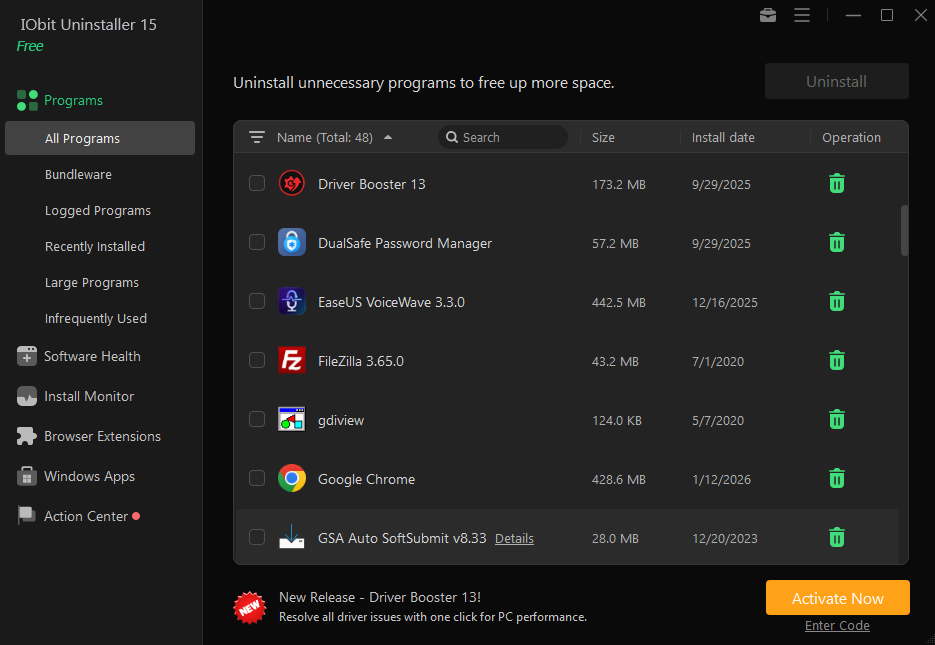
Step 2: Start the uninstall process and let the built-in tools do their work. Afterward, IObit Uninstaller scanned for leftover files and removed them instantly, showing how much residual data can remain after a typical uninstall.

Step 3: After uninstalling, I ran Software Health, which found and removed leftover files, cached installers, and unused traces, freeing up more than 10 GB of extra space and reducing system clutter.
2. Clear Temporary Files
To support everyday processes, Windows and applications automatically generate temporary files. As temporary files continue to accumulate, they can reduce the amount of free disk space available. Large amounts of temporary files can place unnecessary demands on storage and system resources. Performing regular cleanups helps remove unnecessary files, optimize performance, and free up space for important programs and documents.
There are multiple easy methods—from quick manual fixes to smarter automated solutions—to help you reclaim storage and speed up your PC. However, if you frequently install and uninstall software, IObit Uninstaller 15 is far more effective in clearing temporary files than manual or automated methods.
Here’s how to clean up temp files in Windows 11 with IObit Uninstaller 15.
Step 1: Download and install this Windows uninstaller on your laptop by clicking the download button below.
Step 2: Open the program and go to the Program Health tab. Select Software Redundant Files, which includes temporary files and privacy traces.
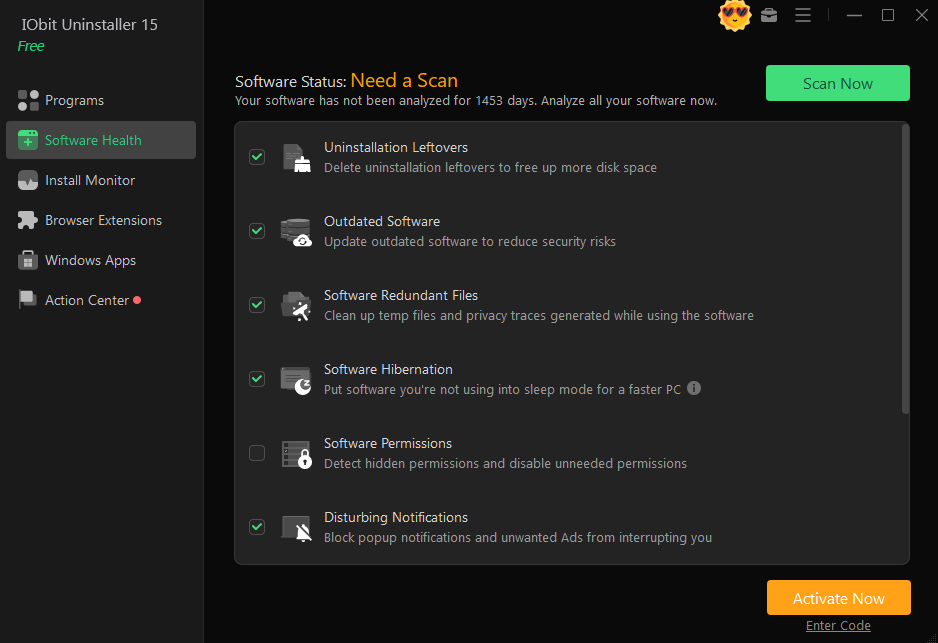
Step 3: Click Scan Now to detect junk files. You can also click Details to view the full list of temporary files.
Step 4: Click Fix to clean the files, and the process will finish within seconds.
3. Managing Large Media Files
Growing media libraries can consume a large portion of your storage capacity over time. Proper file management helps keep your system organized and performing efficiently. Relocating large files, such as high-resolution videos, extensive photo libraries, and unused downloads, to an external drive is an easy way to free up valuable storage space.
How to Do It:
Step 1. Make sure your external hard drive, SSD, or USB drive is properly connected and detected by your system.
Step 2. Drag and drop large files or folders onto it.
Step 3. Double-check that files are copied correctly and open properly on the external drive before deleting the originals from your PC.
Why did I choose IObit Uninstaller 15?
In the past, I would have fixed this issue with a full reinstall, then set everything up again. Using IObit Uninstaller 15, a powerful uninstaller for Windows, helped me keep my current setup while removing 15 unwanted Windows apps. I could clearly see improvements in storage, boot time, and background load. It is a practical way to clean up bloat, reduce clutter, and improve system performance.
What I liked about using IObit Uninstaller is:
- It removed Windows and Microsoft Store apps that Settings often misses.
- It cleaned leftover files that normally remain after uninstalling apps.
- The deep uninstall feature ensured the complete removal of the software.
- The leftover scan helped delete hidden folders and registry entries.
- The Software Health tool improved system optimization in one place.
- It helped free up more space and improve boot time.
- Everything was managed easily through a single, simple interface.
Common Mistakes to Avoid During Storage Cleanup
It’s important to maintain the right balance to ensure safe and effective system cleanup. While cleaning my laptop, I also learned what not to do:
- Don’t delete system files manually.
- Avoid uninstalling unknown essential apps.
- Don’t ignore backup before cleanup.
- Don’t rely on only one cleanup method.
Conclusion
In conclusion, dealing with low storage doesn’t always require complex solutions. Using IObit Uninstaller, a powerful uninstaller for Windows, I was able to remove unwanted apps, clean up leftover files, and instantly recover 3GB of space. Along with simple cleanup methods, this approach improved my laptop’s speed and responsiveness. Regular maintenance like this helps keep Windows running smoothly, efficiently, and clutter-free over time.
FAQs
Q1. Is IObit Uninstaller 15 worth it for storage cleanup?
Storage cleanup is one of the strengths of IObit Uninstaller 15. It removes unwanted programs and cleans up leftover files that can occupy valuable disk space, helping users free up storage and maintain a cleaner, more efficient Windows installation.
Q2. How much storage can I recover using cleanup tools?
The amount of storage you can reclaim varies depending on your system and how it is used. With cleanup tools, you can often free a few GB to 3GB or more by removing junk files, unused apps, cache, and leftover system data effectively.
Q3. What is the safest way to free up disk space?
The safest way to free up disk space is to use trusted cleanup tools, uninstall unused programs, clear temporary files, and move large media to external storage. Always avoid deleting system files manually and double-check files before removing them permanently.