
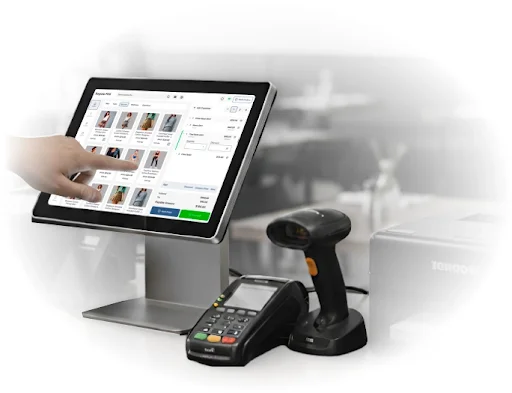
The first time you try to figure out how to use POS system software in a real setting, it rarely feels smooth. There’s usually a line forming, the screen shows more buttons than expected, and you’re hoping you don’t tap the wrong thing. It’s one of those tools that looks simple from the outside — until you’re the one using it.
Today, POS systems are everywhere. You’ll see them in retail stores, coffee shops, salons, and even in more specialized areas like dispensary software development. They’ve become part of the everyday rhythm of running a business. Still, most people learn them on the go, not from a manual.
So instead of turning this into a technical breakdown, let’s walk through how it actually works in real life — the way people pick it up behind the counter.
Why POS Systems Matter in Modern Business
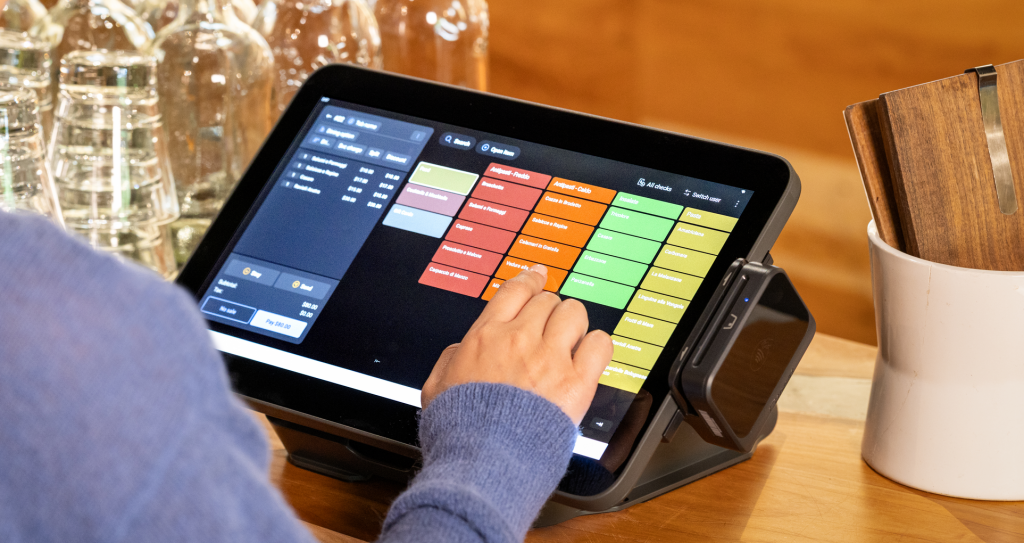
A POS system ends up being more important than you expect. Not because it’s complex, but because everything passes through it.
Every transaction, every correction, every refund — it all gets recorded there. If something goes wrong, that’s usually where you notice it first. And if everything is set up properly, the system quietly keeps things running without much effort.
A few years ago, many businesses only relied on a simple bank POS machine to accept card payments. Now, even small shops use systems that track sales in detail and show exactly what’s happening throughout the day. You’re not just taking money anymore — you’re collecting information without even trying.
What surprises people is how quickly it becomes part of the routine. At first, you think about every step. After a few days, you stop noticing it. That’s usually the moment when you’ve really started to understand how to use POS tools properly.
What Is a POS System and How Does It Work?
If you strip it down to basics, a POS system is just the place where a sale is completed. But the way it works behind the scenes is what makes it useful.
There’s the part you interact with — the screen, maybe a scanner, a card reader, sometimes a bank POS machine sitting next to it. That’s the visible side. You tap, scan, confirm, and move on.
Then there’s everything happening in the background. Each action is recorded instantly. When you sell something, the system adjusts your stock. When a payment goes through, it’s logged and stored. That connection between your device and the bank — that’s what people refer to as POS terminal payment processing.
It’s easier to understand if you think of it like this:
| What you use | What it feels like | What’s actually happening |
| The screen | You add items and see the total | The system builds a record of the sale |
| The scanner | You scan instead of typing | Product data is pulled instantly |
| The card reader | Customer taps or inserts a card | Payment is verified with the bank |
| The software | Mostly invisible | Everything gets tracked and saved |
| The printer | You hand over a receipt | Proof of transaction is created |
Different businesses use different setups. Some prefer fixed systems behind a counter. Others move around with a tablet. Some owners check their sales from home using cloud-based tools.
But no matter the setup, the goal stays the same: keep transactions quick and reduce mistakes.
Getting Started: How to Set Up and Use a POS System
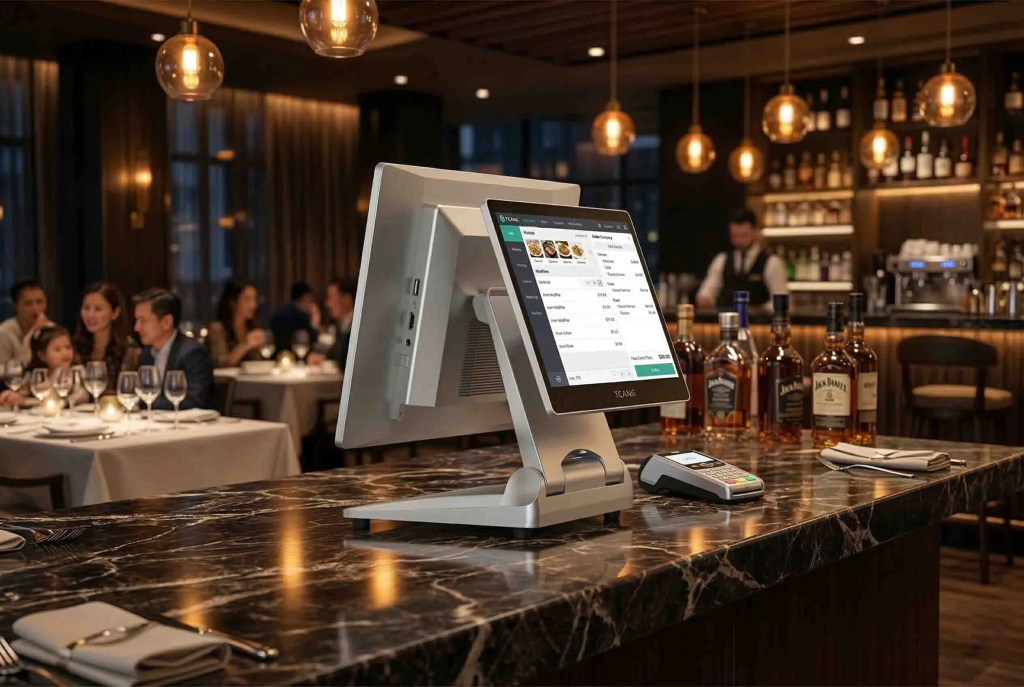
Setting up a POS system isn’t difficult — it just feels unfamiliar at first. Most of the time, you’re not dealing with anything complicated, just a series of small steps that need to be done once.
You’re basically preparing your workspace so everything flows later.
Here’s how it usually unfolds:
- You connect everything
Plug in the terminal, turn on the devices, and make sure the payment unit responds. This part is mostly straightforward. - You go through the basic settings
Taxes, currency, payment types. It’s not the most exciting step, but skipping it causes problems later. - You add what you sell
This part takes the longest. Names, prices, maybe categories. It’s worth slowing down here — it saves time every single day after. - You test a few transactions
Not because something will break, but because it helps you get comfortable before real customers are involved. - You show someone else
Even if it’s just one employee, walking them through it reveals things you might have missed.
After that, learning how to use POS system functions isn’t about studying anything. It just comes from repetition. You open, you sell, you close. After a while, you stop thinking about the system and focus on the interaction instead.
A common mistake is trying to build the “perfect” setup right away. In reality, most businesses adjust things over time. You notice what slows you down, and you fix it gradually.
How to Use a POS Machine for Transactions (Step-by-Step Guide)
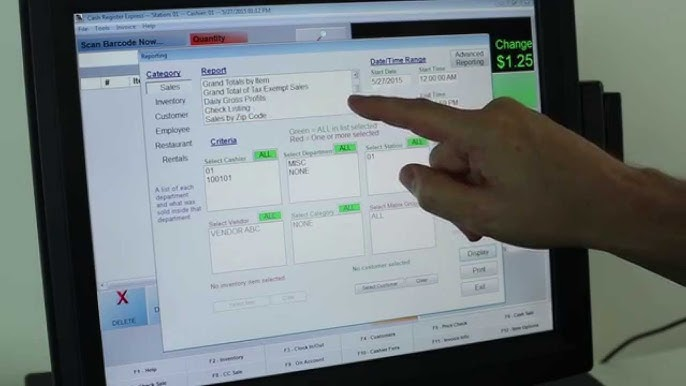
This is the part that matters most — the moment a customer is standing in front of you.
Once you’ve done it a few times, the process feels obvious. But at the beginning, it helps to think in simple steps.
A typical sale goes like this:
- You add the item (scan it or tap it on the screen)
- You quickly check that everything looks right
- You apply a discount if needed
- You select how the customer wants to pay
- You complete the transaction
That’s really all there is to how to use POS machine tools during a sale.
Payments are where small differences appear. Card transactions go through POS terminal payment processing, which means the system connects to the bank and confirms everything in a few seconds. Contactless payments are even faster — tap, wait a moment, done.
Cash is more manual, but the system usually helps by calculating change. That alone removes a lot of pressure, especially when things get busy.
Understanding how to operate POS machine features also comes down to attention. Not rushing through totals, making sure payments are approved, handing over receipts without being asked. These habits don’t take effort, but they make a noticeable difference.
Over time, daily POS usage stops feeling like a set of steps. It becomes automatic. Your hands move faster, you rely less on the screen, and the whole process feels smoother — both for you and for the person on the other side of the counter.
Key POS Functions Beyond Payments
At some point, you stop thinking of a POS system as just something that takes payments. It starts showing up in other parts of your day without you really noticing.
Inventory is usually the first thing people appreciate. You sell something, and it’s already deducted. No notes, no separate tracking. You might still double-check stock now and then, but you’re no longer guessing. That alone removes a lot of small daily stress.
Then there’s the data side of things. Not in a “reports and analytics” kind of way — more like quick checks. You open the dashboard and see how the day is going. Maybe one product is moving faster than expected, or something hasn’t sold at all. You don’t need to dig deep; the overview is often enough.
Some businesses also use customer info, though not everyone bothers at first. But when you do, it changes how you recognize repeat visitors. You remember what they usually buy, or at least the system does it for you.
And there’s staff tracking too, whether you plan to use it or not. Sales are tied to whoever is logged in, shifts become easier to review, and you get a clearer sense of how busy periods are handled.
So when people talk about learning how to use POS system features, it’s not really about mastering everything at once. It’s more about gradually noticing what the system is already doing for you — and using that when it becomes useful.
POS System Comparison
Different systems don’t just look different — they feel different when you’re actually using them during a busy shift.
Some are fixed in place and reliable, others give you more freedom but less structure. It really depends on how your business operates day to day.
Here’s a simple comparison without overcomplicating it:
| Type of POS | What it’s like in real use | Cost range | Where it fits best |
| Traditional POS | Stays in one place, very consistent | Medium–High | Stores with steady traffic |
| Mobile POS | Easy to move, quick to set up | Low–Medium | Smaller setups, flexible spaces |
| Cloud-based POS | Accessible from different locations | Subscription | Businesses that want remote access |
A traditional system feels stable — you always know where everything is. A mobile setup is more relaxed, especially if you don’t want to be stuck behind a counter. Cloud systems are useful if you like checking things outside the store.
None of them are “better” in general. It just depends on how you prefer to work.
Expert Insight: What Professionals Say About POS Systems
People who work around payment systems rarely talk about features first. They usually talk about flow — how smooth things feel when everything works.
Jack Dorsey, co-founder of Square and former CEO of Twitter, once said in an interview with Fast Company: “We want to make commerce easy for everyone.”
That idea shows up directly in how modern POS systems are built. The goal isn’t to impress you with options — it’s to remove friction. When a transaction takes longer than expected, you feel it immediately. When it works well, you barely notice it.
That’s especially true with POS terminal payment processing. It either happens instantly, or it doesn’t — and customers pick up on that right away.
From a business point of view, that smoothness matters more than anything else. You don’t need a complicated system. You need one that works without slowing you down.
Common Challenges and How to Solve Them
No matter how good the system is, small issues still come up. Usually not serious, just inconvenient — and often at the worst time.
Connection problems are probably the most frustrating. Everything is working fine, and then suddenly a payment won’t go through. In most cases, it’s just the network. Restarting the device or switching to a backup connection usually solves it, but it still breaks the rhythm for a moment.
Another common situation is hesitation from staff. Not because the system is difficult, but because they’re not fully comfortable yet. You can see it in small pauses, double-checking steps, moving slower than necessary. That usually disappears after a few shifts.
Mistakes happen too. Wrong item selected, incorrect quantity, missed discount. Nothing dramatic, just everyday slips. The good thing is most systems let you fix these quickly if you catch them early.
Payment issues are a bit different. If something freezes or fails midway, the best approach is simple: don’t rush it. Cancel, reset, try again. Knowing how to operate POS machine steps calmly makes a big difference here.
Over time, these situations stop feeling like problems. You recognize them right away and deal with them without thinking too much about it.
Conclusion: Mastering POS for Business Growth
At the start, using a POS system feels like something you have to focus on. You think about every step, check everything twice, and move a bit slower.
Then, almost without noticing, it changes.
You stop looking for buttons. You stop thinking about the process. You just handle the transaction and move on. That’s usually the point where everything clicks.
Understanding how to use POS system tools isn’t about learning a system perfectly. It’s about getting comfortable enough that it doesn’t get in your way anymore.
And once that happens, you have more space to pay attention to what actually matters — the customer, the pace, the small details that make the experience better.
FAQ: Everything You Need to Know About POS Systems
1. What is the easiest way to learn how to use POS system tools?
The quickest way is to just start using it in a real setting. Go through a few transactions, even test ones, and repeat them. Most people get comfortable after a short time because the actions are repetitive and easy to remember.
2. Can a bank POS machine work without internet?
In most cases, it still needs a connection to approve payments. Some devices allow limited offline use, but transactions are usually processed once the connection is restored, so it’s not something to rely on regularly.
3. What’s the difference between POS software and hardware?
Hardware is everything you physically use — the screen, scanner, payment device. Software is what runs behind it, keeping track of sales, storing data, and making sure everything is recorded properly.
4. How secure is POS terminal payment processing?
It’s generally very secure. Payments go through encrypted channels, and most systems follow strict standards. As long as updates are installed and the setup is correct, risks are minimal in everyday use.
5. Do employees need training to operate POS machine systems?
They don’t need long training sessions, but a short introduction helps a lot. Once they’ve handled a few real transactions, the process usually becomes clear and much faster.
6. Is a POS system worth it for a small business?
Yes, mainly because it reduces manual work. Even a simple setup helps track sales, avoid mistakes, and keep things organized without extra effort.
7. How long does it take to feel confident with POS usage?
Usually not long. After a couple of days of regular use, most people stop thinking about the steps and just follow the flow naturally.
Ready for a deep dive? Our full collection awaits your curiosity at 2A Magazine.