

Windows Was Unable to Complete the Format | 7 Effective Methods
Whether you want to change the file system on a drive or reallocate its storage space, formatting is an essential step. However, while formatting your storage device, you may get hit by a “Windows was unable to complete the format” error. This can be really frustrating because there isn’t one universal reason why it occurs. That’s why we come to this full guide. Here, we will briefly explain the causes of this issue and provide you with seven effective solutions to fix it. Don’t stop scrolling!
Part 1: Reasons behind Windows Was Unable to Complete the Format
There are several potential reasons for the ‘Windows cannot format the disk’ error. It’s often recommended to try one or more solutions to fix the problem. Now, let’s take a minute to understand these causes, which can help you find the appropriate method more quickly.
- The drive’s file system is corrupted or damaged.
- You do not have sufficient permissions to format the disk.
- Your computer or storage device is infected with malware.
- Your drive contains bad sectors.
- Your disk gets some physical damage.
- The drive is write-protected, which prevents any changes to it.
Part 2: Recover Data When Windows Was Unable to Complete the Format
Before delving into the solutions, the first step you should take is to recover and back up files stored on the problematic drive. After that, you can safely try to repair ‘Windows was unable to complete the format SD card’ error with a data recovery software. When it comes to recovering data from an inaccessible drive, Tenorshare 4DDiG is usually our go-to choice.
This free data recovery tool enables recovery of lost files from more than 2000 storage devices, including SD cards, internal/external hard drives, USB drives, SSDs, and so forth. Plus, 4DDiG features a clean and simple interface that makes it quite easy to navigate around even for those with limited technical knowledge.
Here’s how you can recover lost data with the help of 4DDiG:
Step 1: To begin, download and install the free version of 4DDiG. Launch the program, select the drive that cannot be formatted by Windows, and click on “Scan.”
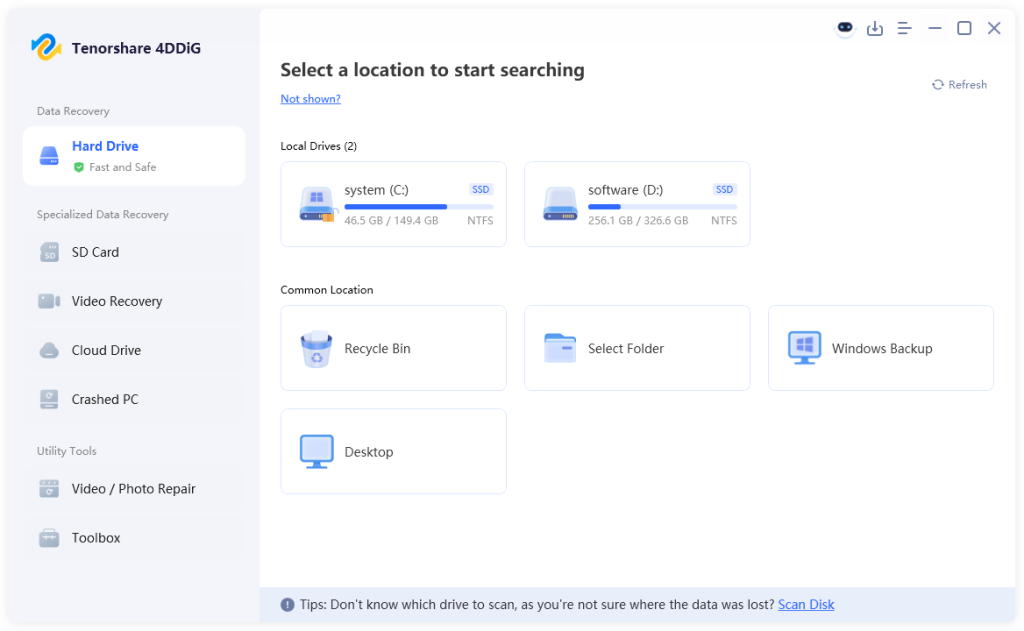
Step 2: Being an extremely powerful tool for data recovery, 4DDiG offers a quick scan and a deep scan. First, start by running a quick scan. You can see if it finds the lost files. If not, the tool will automatically proceed to perform a deep scan.
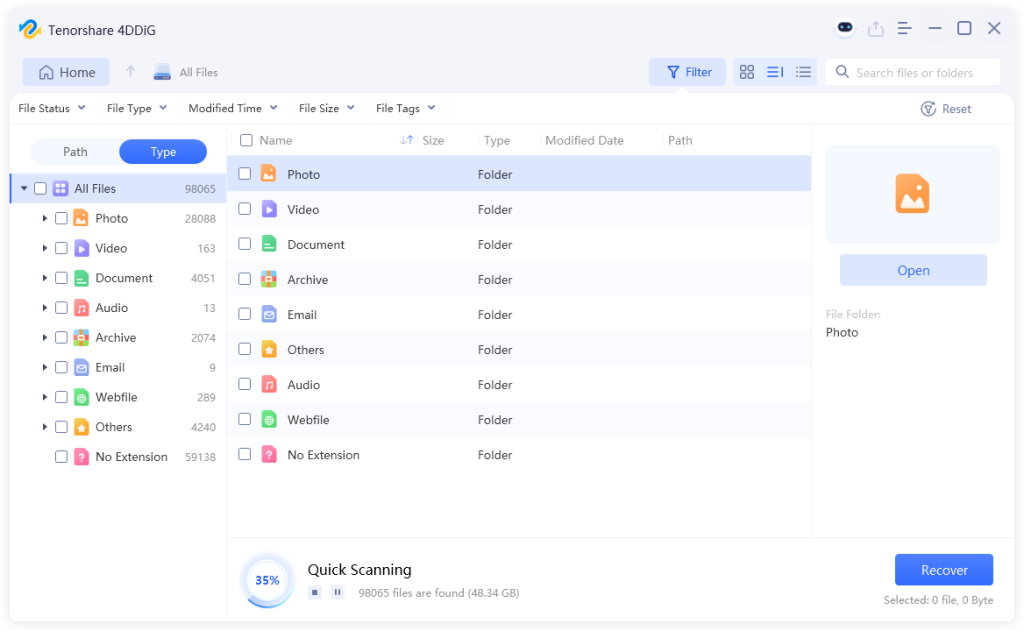
Step 3: To recover your lost files, select them and click the “Recover” button. You’ll be prompted to save the recoverable files to another hard drive or cloud storage.
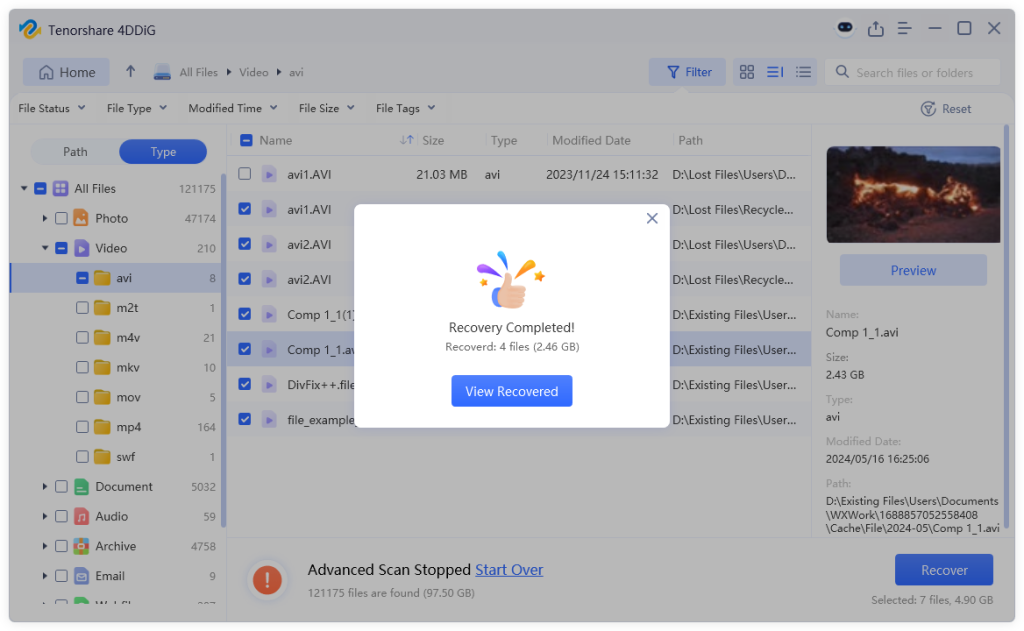
After backing up your data, let’s take a closer look at how to resolve the ‘Windows was unable to format USB’ issue.
Part 3: How Do I Fix Windows Was Unable to Complete the Format Error?
Solution 1: Remove Write Protection
As we all know, you cannot format a drive when it has write-protection enabled. When encountering the ‘flash drive Windows was unable to complete the format’ error, the very first thing to do is to remove the write protection. To do this, switch off the physical lock on your drive manually (common with SD cards). Here’s a guide on how to remove the protection if it’s software-based:
Step 1: First of all, you need to launch Run using the Windows + R keyboard shortcut. Input this command: “regedit.” Hit Enter to launch the Registry Editor.
Step 2: Copy and paste the following registry key path:
HKEY_LOCAL_MACHINE\SYSTEM\CurrentControlSet\Control
Step 3: If you don’t find a key named StorageDevicePolicies here, you’ll need to create it. To do so, right-click on “Control”, select “New” > “Key”, and name it “StorageDevicePolicies”.
Step 4: Right-click on the key you just created. Select “New” > “DWORD (32-bit) Value”. Then, name it “WriteProtect”.
Step 5: Double-click on “WriteProtect” and write “0” in Value data. Finally, click “OK” to remove the write protection.
Solution 2: Scan for Malware
Sometimes, viruses or malware can really be to blame for formatting errors. They might corrupt or make the data on your drive inaccessible to protect themselves. Thus, it’s necessary to run a full scan with reliable antivirus software before proceeding with formatting. While Windows Defender is a viable option, there are many powerful antivirus programs available, such as Norton, McAfee, Bitdefender, Kaspersky, and Avast. If this method doesn’t work for you, head to other solutions.
Solution 3: Test on a Different PC/OS
One classic fix for the ‘Windows was unable to format USB’ error is to format the drive on another computer. We understand that diagnosing the root cause of formatting issues can be difficult, especially if you don’t consider yourself tech-savvy. This method is easy to use, risk-free, and always works wonders. In case the problem stems from system-level issues, it’s best to format the disk using a different OS (macOS or Linux).
Solution 4: Repair Bad Blocks using CHKDSK
If “Windows was unable to complete the format SD card” error keeps haunting you, more chances are it’s due to corrupted sectors on your disk. When certain sectors become bad, they might prevent various disk operations such as formatting. Thankfully, Windows provides a valuable utility to help you resolve this issue. Here’s how you use it:
Step 1: Connect your SD card/USB drive/External hard drive to the computer. Press Windows + R, write “CMD” and click “OK.”
Step 2: Input “chkdsk C: /f /r /x.” Then, execute it. Replace C with the corresponding letter of your drive.
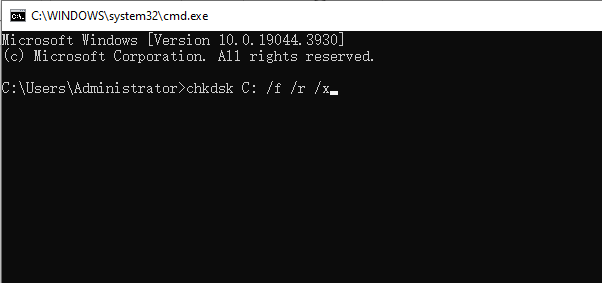
Step 3: Once completed, try formatting your drive again through Disk Management.
Solution 5: Format the Drive by DiskPart
For advanced users, DiskPart is another commonly used command-line tool in Windows for disk formatting. Here are step by step instructions for fixing “Windows was unable to format disk” glitch with DiskPart:
Step 1: Make sure your storage device is recognized by Windows. After opening the Run dialog box, type “diskpart” and hit the Enter key.
Step 2: Once launched, execute the following commands to format your drive.
- list disk
- select disk 0 (here 0 is the number of your problematic disk)
- clean
- create partition primary
- format fs=ntfs quick
Solution 6: Employ a Third-party Format Tool
Besides Windows built-in utilities, there’re lots of third-party format tools worth trying. These tools not only support various file systems but also offer a variety of formatting options. To guide your decision, here are some popular third-party storage drive formatting tools in 2026:
- 4DDiG Partition Manager
- AOMEI Partition Assistant
- Rufus (for USB)
- SD Memory Card Formatter by SD Association (for SD card)
- HP USB Disk Storage Format Tool (for USB)
Solution 7: Replace the Drive
If all else fails to fix the ‘Windows unable to format disk’ error, then the drive itself might be faulty. In such situations, there’s nothing you can do but replace the drive or send it for repair. On other hand, there are chances the disk you purchased could be counterfeit or of low quality.
Here you are! That’s all about how to fix the ‘flash drive Windows was unable to complete the format’ error.
Final Words
Now, you should no longer worry about the “Windows was unable to complete the format” error. From clearing viruses to using alternative formatting tools, we’ve shared 7 potential solutions to fix it. Note they might not work in every situation. If your drive shows any signs or symptoms of physical damage, it’s always right to contact the manufacturer immediately for repairs.
Dive into deeper insights that power confident action at 2A Magazine.