
Turning hours of interviews, podcasts, or meeting recordings into written documents is usually a tedious and time-consuming task for transcribe audio to text. Traditional manual transcription is not only inefficient, but even when using basic speech recognition tools, the output often consists of unformatted, unpunctuated walls of text that require heavy manual cleanup and formatting.
To help you lower costs and shorten the time required to get from raw audio to a final draft, this article reviews four mainstream online transcription solutions to transcribe an audio file to text for free. You can leverage the free trial allowances of different platforms to find the high-efficiency transcription path that best fits your workflow.
Matching Your Audio Transcription Workflow
Different projects demand completely different tool capabilities. When you need to transcribe audio to text online, manage local meeting recordings, or capture quick voice notes, basic accuracy is only part of the equation. The comparison matrix below outlines how leading platforms handle URL processing, summaries, and workflow needs.
Feature and Workflow Matrix
| Tool Name | Best Use Case | Core Input Method | Speaker Diarization and AI Generation | Free Tier Allowance and Rules |
| Hoocs.ai | Long videos, web podcasts, meeting summaries | Local file upload or paste link direct processing | Speaker identification, AI summaries, and mind maps | 300 minutes free allowance, $12/mo($ 0.008 per minute) |
| Audacity + Whisper AI | Local files, interview audio with zero limits | Local audio import | Standard text output | Completely free with unlimited offline run |
| Google Docs | Short voice notes, Google ecosystem | System microphone or stereo mix real-time dictation | Plain text output without advanced AI expansion | Completely free without time limits using system audio routing |
| MS Word Web | Office document editing and interview organization | Direct local file upload | Speaker identification and timestamp tagging | Fixed monthly free transcription minutes included with free Microsoft accounts |
Method 1: Transcribe Audio Files Online with Hoocs.ai
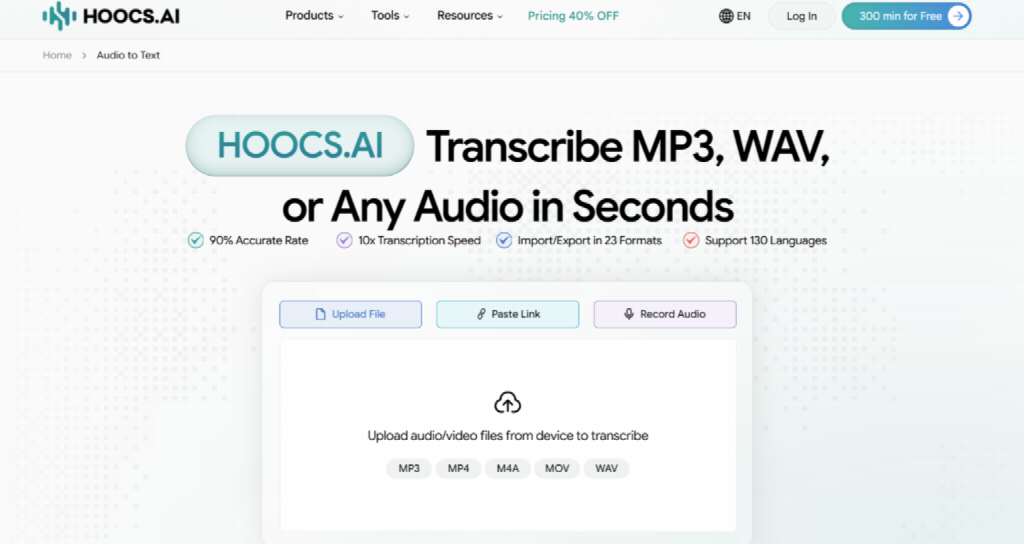
Processing video or audio content from YouTube or other web platforms traditionally requires downloading large media files before re-uploading them, which severely slows your workflow. Hoocs.ai breaks this bottleneck with a direct-link mechanism, allowing you to paste online media URLs so the cloud engine can extract audio streams for rapid processing.
Beyond online transcription, another core advantage lies in turning unstructured speech into logical assets. The platform automatically identifies speakers and timestamps while instantly generating AI summaries and mind maps. This allows creators and researchers to extract core insights and dialogue structures immediately without reading through thousands of words.
Key Features
- Delivering blazing-fast transcription speeds up to 10x faster
- Supporting 23 different audio and video export formats
- Supporting accurate transcription across more than 130 global languages
- Offering 300 minutes of free AI transcription credits upon registration
Limitations
- No human transcription service currently available
- Requiring a stable internet connection for cloud-based media processing
How to Transcribe Audio to Text with Hoocs.ai Step by Step
Following a structured workflow ensures smooth media processing. Here is a quick guide to extracting clean text assets from your online audio files efficiently without unnecessary delays or manual formatting headaches.
Step 1: Visit the Hoocs.ai official website and access the Hoocs.ai dashboard in your web browser.
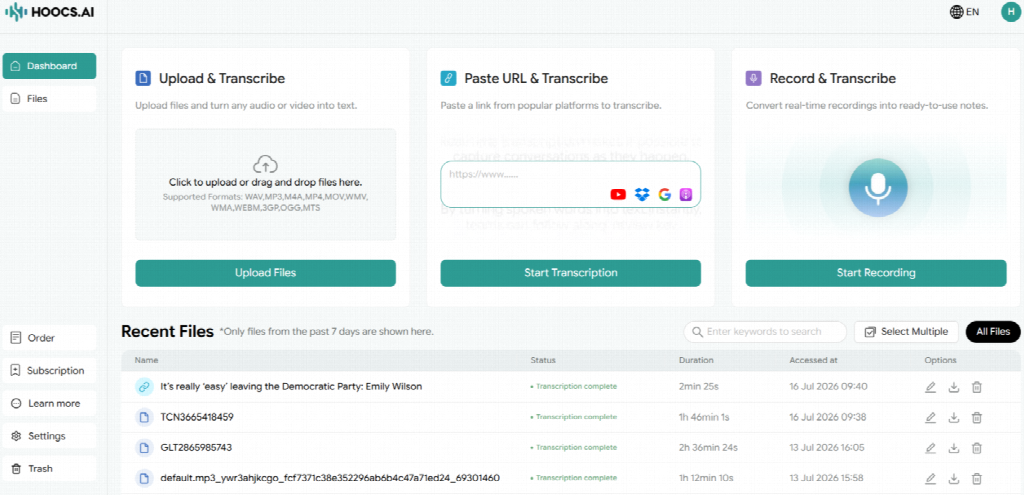
Step 2: Upload your local audio files or paste online YouTube video URLs directly into the input area.
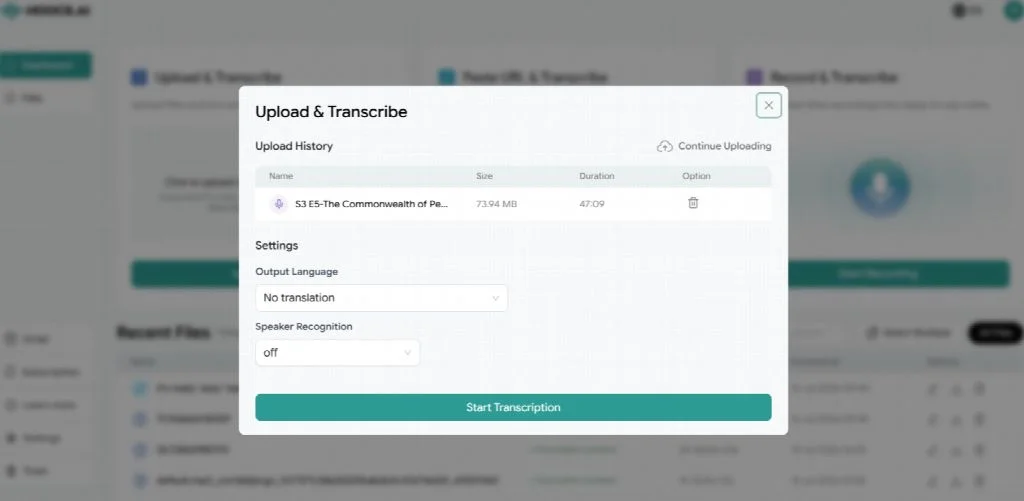
Step 3: Select your preferred language and Speaker Recognition, and start the transcription process to generate initial text.
Step 4: Review the transcript using the dual-track editor and generate summaries or mind maps using built-in tools.
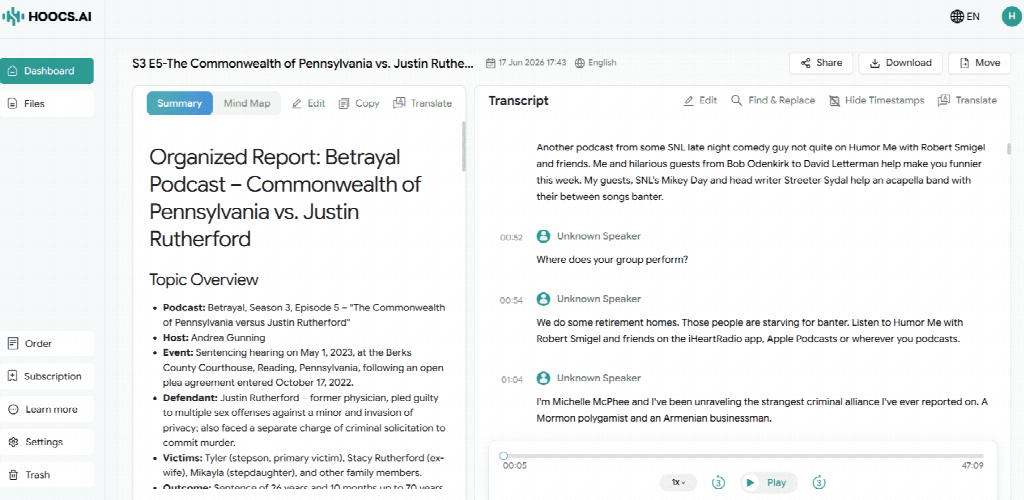
Step 5: Export your final transcript as a clean document or subtitle file directly to your local storage.
Method 2: Transcribe Audio Free Online via Google Docs
For users who prefer to transcribe audio to text free online within the Google cloud ecosystem, Google Docs provides a completely free and built-in speech-to-text feature. Unlike tools requiring subscriptions or paywalls, Google Docs lets you transcribe audio to text free online without any file size or usage duration limits, directly converting speech into editable cloud documents.
Because Google Docs was originally engineered for live microphone dictation rather than file uploads, capturing pre-recorded media requires routing your system audio. By enabling your computer’s Stereo Mix or using a virtual audio cable, your browser seamlessly captures the playback sound as microphone input.
Key Features
- Completely free usage with no hidden duration or file limits
- Automatic cloud synchronization saving directly to your Google Drive
- Zero software installation required inside standard web browsers
Limitations
- Requires manual configuration for system audio routing settings
- Pauses real-time transcription if you switch away from the active tab
How to Convert Audio to Text with Google Docs Step by Step
Configuring browser-based dictation takes just a few moments. Follow these straightforward steps to capture speech text directly inside your cloud documents without encountering unexpected interruptions:
Step 1: Set Stereo Mix as your default recording device within your Windows sound settings.
Step 2: Open a clean document inside your Google Chrome web browser.
Step 3: Navigate to the top menu, open the Tools dropdown, and select Voice Typing.
Step 4: Choose your preferred spoken language and click the red microphone icon to start.
Step 5: Play your target audio file to let the system generate live text automatically.
Method 3: Use Audacity with Whisper AI for Local Offline Transcription
When you manage massive local audio files or have strict data privacy requirements and don’t want to upload files to external cloud servers, the open-source software Audacity paired with Whisper AI provides a powerful local offline solution.
By running OpenAI Whisper models directly on your local computer hardware, this setup breaks all cloud minute limits and subscription paywalls. Whether your audio lasts for hours or requires offline processing, it completes high-accuracy transcription locally and outputs results to exportable label tracks.
Key Features
- Processing all calculations locally on your device to guarantee absolute privacy and security
- Operating with zero duration limits, file size caps, or hidden subscription paywalls
- Providing seamless cross-platform compatibility across Windows, macOS, and Linux desktop operating systems
Limitations
- Consuming local hardware computing resources when processing ultra-long audio files
- Lacking direct web link parsing capabilities and requiring local file downloads first
How to Transcribe Offline Step by Step
Leveraging open-source local models ensures total privacy and unmetered processing. Follow these precise steps with intuitive menu navigation to set up and extract clean transcripts using Audacity and Whisper:
Step 1: Download and install Audacity along with the compatible OpenVINO Whisper free AI plugin.
Step 2: Open the application and navigate to File -> Open to import your local audio or recording file.
Step 3: Select your target audio track or region, then go to Analyze -> OpenVINO Whisper Transcription to launch the tool.
Step 4: Choose your preferred Whisper model size based on your hardware specifications and set the spoken language.
Step 5: Run the transcription process, then navigate to File -> Export Other -> Export Labels to save your finalized text or subtitle files.
Method 4: Transcribe Audio via Microsoft Word for Web
If you want the convenience of uploading local audio files directly while keeping everything natively generated inside a word processor, Microsoft Word for Web provides a powerful free solution. As long as you have a standard personal Microsoft account, you can access its built-in transcription feature without any complex third-party tools.
Unlike real-time dictation tools, the web version of Word supports direct uploads of pre-recorded MP3, WAV, or M4A files for background cloud processing. Once processed, it generates clear transcripts complete with precise timestamps and speaker labels like Speaker 1 and Speaker 2, letting you insert text straight into your document with a single click.
Key Features
- Supporting direct file uploads for standard audio and video formats
- Automatically identifying different speakers and organizing text with timestamps
- Seamlessly integrating finalized transcripts directly into your working document
Limitations
- Enforcing a monthly minute cap for free Microsoft user accounts
- Restricting direct file upload transcription features to the web browser version
How to Transcribe an Audio File via Word Step by Step
Navigating the built-in transcription panel takes just a few clicks. Follow these straightforward steps to upload your recordings, format speaker labels, and insert text directly into your Word document smoothly:
Step 1: Log in to Microsoft Word for Web using your free Microsoft account and open a blank document.
Step 2: Navigate to the top ribbon toolbar, click the arrow next to Dictate, and select Transcribe.
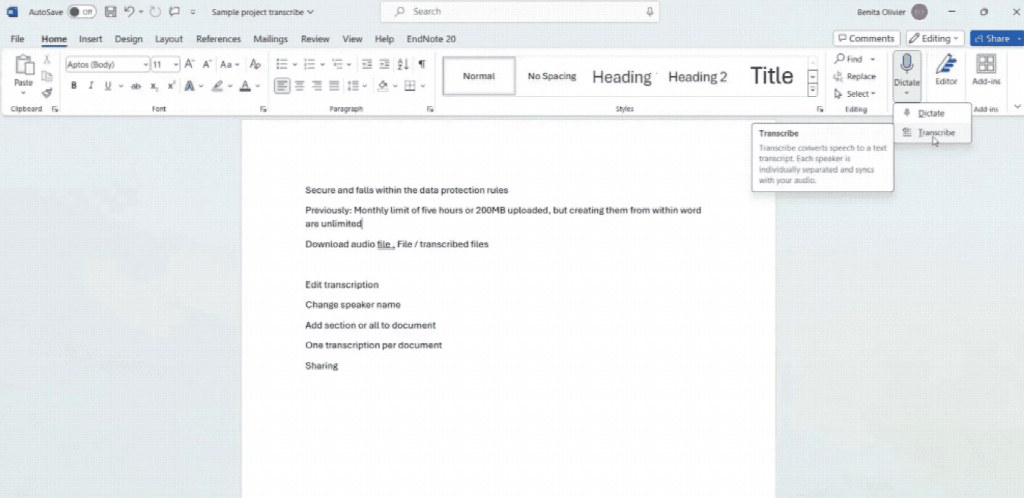
Step 3: Upload your local audio file by clicking the upload audio button within the side panel.
Step 4: Review the generated text transcript, customize speaker names, and edit as needed.
Step 5: Insert your finalized content directly into the document by selecting the Add All option.
Post-Processing Strategies for High Accuracy
Raw text generated by automatic speech recognition often lacks clear paragraph breaks and contains numerous verbal fillers. By applying targeted post-processing strategies, you can quickly transform a detailed text into professional documents ready for direct presentation:
Extract Core Structures with AI Summaries and Mind Maps
When dealing with lengthy meetings or interviews, reading through transcripts line by line is inefficient. Instead, leverage AI-generated summaries and mind maps to grasp the overarching discussion framework and action items first, then dive into specific sections as needed.
Organize Dialogues Using Speaker Diarization
For multi-speaker meetings, ensure speaker identification is enabled from the start. Once you receive the transcript, use global find-and-replace features to quickly swap generic labels like “Speaker 1” or “Speaker 2” with participants’ actual names.
Clean Up Filler Words and Verbal Tics
Spoken language naturally contains numerous filler words like “um,” “ah,” and “you know.” Utilizing an editor’s auto-clean feature or simple formatting prompts can quickly restructure raw transcripts into concise, polished meeting minutes.
Final Verdict
Choosing the right transcription workflow depends entirely on your audio source and specific processing needs. If you want to transcribe audio to text free online and want automated summaries and mind maps, Hoocs.ai offers a seamless URL-parsing and structuring solution with 300 free minutes for new users. For handling single local audio files, Audacity provides a completely secure conversion option.
If you are looking for a zero-cost solution with unlimited transcription time, pairing Google Docs with system audio routing is a viable path. Meanwhile, Microsoft Word for Web delivers an exceptional native document experience for local file uploads and speaker diarization. By combining these tools with smart post-processing strategies, you can drastically boost your multimedia content productivity.