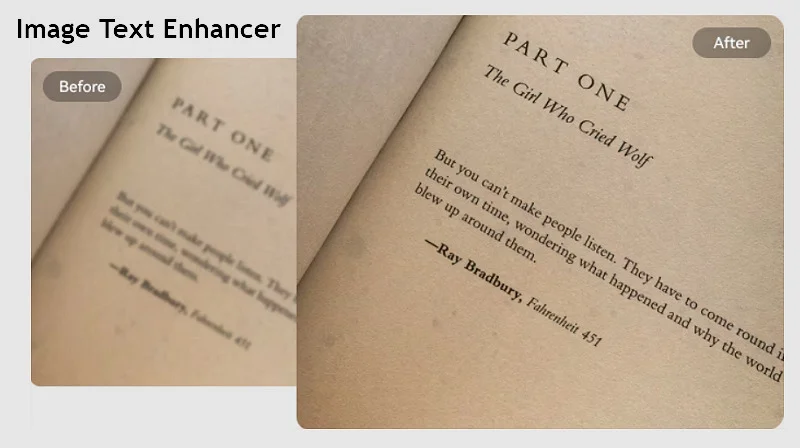
Whether it’s a screenshot, a scanned document, or a photo of handwritten notes, reading the blurry text is frustrating. Fortunately, several powerful tools are available to enhance text in image.
In this article, you’ll explore the top 5 image text enhancer tools, with their features, to help you select the right option for your needs.
Why Text in Images Becomes Blurry
Blurry or unreadable text in images can be caused by several factors, including:
- Low Resolution: Capturing or downloading an image at low resolution results in pixelated, hard-to-read text. This is especially common in screenshots and digital photographs where the quality settings are not optimal.
- Compression: Whether you compress images for storage or to reduce file size, you can lose some detail. Compression algorithms tend to blur the text, reducing its sharpness and making it less legible.
- Motion Blur: If the camera or device was moving while capturing the image, motion blur can happen. This results in fuzzy text that is difficult to decipher.
- Poor Lighting: Low lighting when capturing or scanning a photo can reduce visibility and make text unclear. Shadows, reflections, and uneven lighting cause the image to appear blurry.
These issues are common in scenarios such as screenshots, scanned documents, receipts, or even photos of notes. But thankfully, modern AI image text enhancer tools can fix these issues and make the text clear again.
What Is an Image Text Enhancer
An image text enhancer is a tool designed to sharpen blurry text and improve the overall readability in images. It either works manually or uses advanced AI to correct distortions, making it easier to read photos in any format.
So you can easily fix issues like blurry text, low resolution, compression artifacts, or poor contrast without distorting the image. It also enhances their overall quality with various techniques such as sharpening, contrast adjustment, noise reduction, and detail restoration.
Top 5 Image Text Enhancers in 2026
Below are the top 5 offline and online image text enhancer options you should consider in 2026:
1. HitPaw FotorPea
Compatibility: Windows, Mac, Android, iPhone, and Web
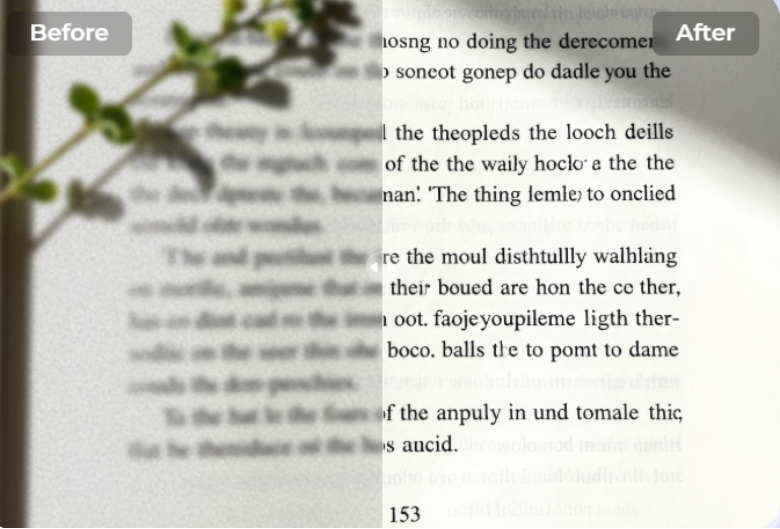
HitPaw FotorPea is the leading platform offering a specialized AI image text enhancer that combines powerful AI algorithms with a simple interface. With a few clicks, it helps improve the readability of blurry text in images. It can detect and enhance pixelated text in your images with no need to manually select text areas.
You can also use its other enhancement models to improve overall image quality. Designed for speed and efficiency, it can deliver crisp, legible characters even in photos with severe blur or noise. You can even preview the output before downloading to make changes on the go.
Features:
- Support JPG, PNG, WEBP, and other popular formats
- Make notes readable from photos with a click
- Extra enhancement tools like denoise, sharpen, etc.
- Allow removing text blur from multiple images at once
- Offer a free plan for users to test before subscription
2. Topaz Photo
Compatibility: Windows and Mac
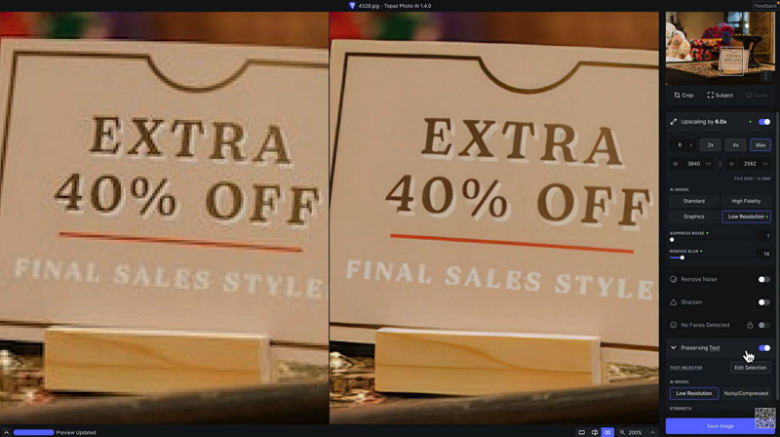
Topaz Photo is another high-quality AI image enhancement tool. Along with its ability to sharpen details, it uses AI to enhance text in image with the option to select the text area. Whether it’s a product photo or a document page, it will recover letters, numbers, and fine details for the best results.
Features:
- Restore lost detail due to missed focus, blur, or motion
- Let you adjust the strength, detail, and other parameters
- High-quality results for reducing noise and upscaling
- Integrate seamlessly with Apple Photos, Capture One, etc.
- Ideal for professionals needing general image restoration
3. Adobe Photoshop
Compatibility: Windows and Mac
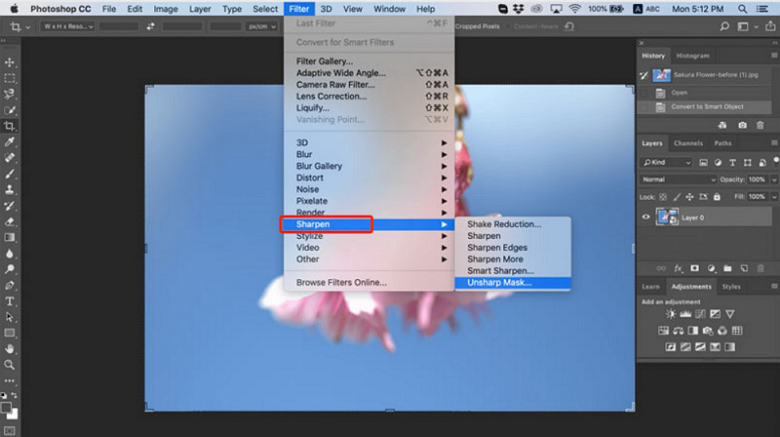
Adobe Photoshop has long been a powerful image editing software that can help you enhance text. Its extensive toolkit lets users fix blurry document images, screenshots, and more using various sharpening tools in the filters menu. For example, it offers Unsharp Mask or Smart Sharpen to enhance pixelated text.
Features:
- Manual sharpening tools for better control
- Layer-based editing to preserve the rest of the image
- Allow parameters adjustment, from sharpness to color
- Support selecting the specific area to sharpen text
- Advanced retouching & editing features for professionals
4. GIMP
Compatibility: Windows, Mac, and Linux
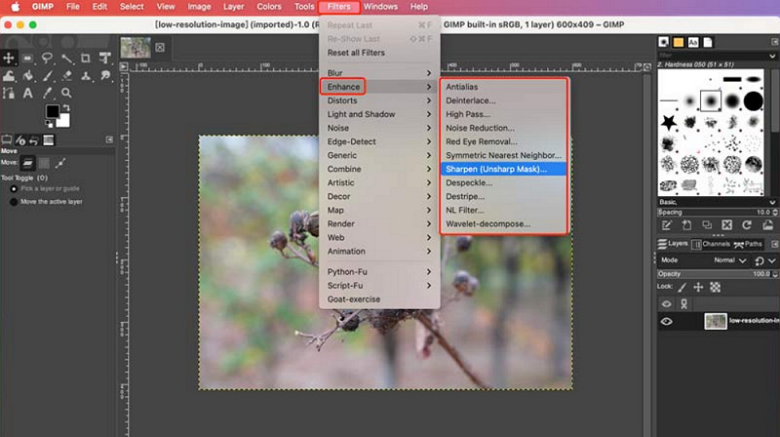
GIMP is an open-source editing program that also serves as a powerful image text enhancer. It offers a powerful Unsharp Mask tool for enhancing blurry text in images. You can also access various enhance tools under the Filters menu. While it lacks AI features, it still has customization options for those willing to put in the effort.
Features:
- Completely free to download via the official website
- Various filters and plugins to enhance image clarity
- Manual customization controls for high precision
- Allow you to adjust the opacity level as preferred
- Robust tools, i.e., layers, masks, selection tools, etc.
5. PicWish
Compatibility: Online, Android, iPhone
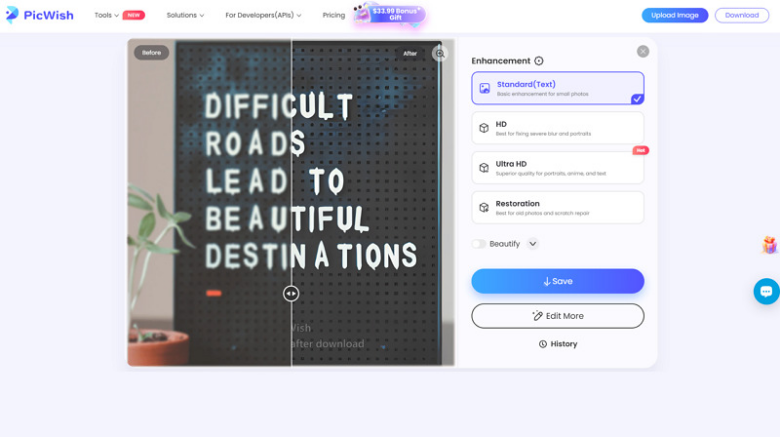
PicWish is an easy-to-use online image text enhancer that can improve image clarity, lighting, and resolution. It can intelligently detect and sharpen pixelated or blurry text in your photos within seconds. You can access various text enhancement models to enhance PDF, document, and book content. It even supports enhancing multiple images at once, saving time and effort.
Features:
- Allow pasting the image URL as an input
- Image text enhancer free without watermark
- Help improve information accuracy without hassle
- Let you enhance text in up to 30 images at once
- API support to integrate it into your applications
- Built-in AI models like GPT Image 2.0 and Nano Banana
How to Make Blurry Text Clear (Step-by-Step)
For those looking for a simple way to enhance text in screenshots or other photos, here is a step-by-step guide using HitPaw FotorPea as an example:
Step 1. Upload Photo
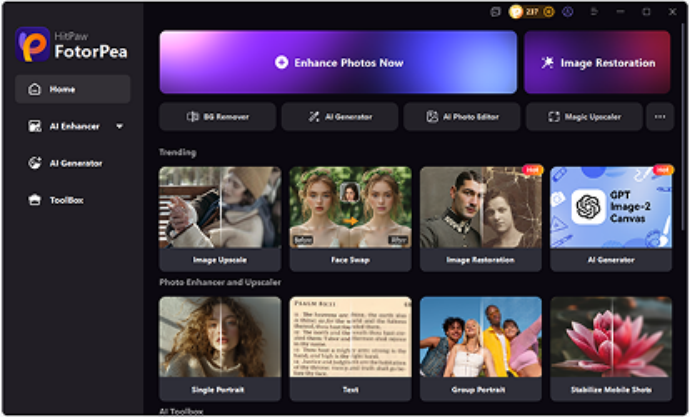
The first step is to launch this software and tap the “Enhance Photos Now” button. Now, click or drag and drop the blurry image file.
Step 2. Select the Text Model
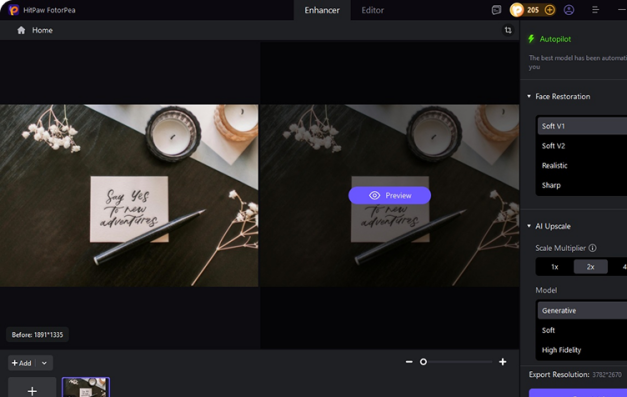
Next, expand the “Enhancements” section and enable the “Text” model. You can also enable multiple models at once, like upscaling and denoising.
Step 3. Preview and Export
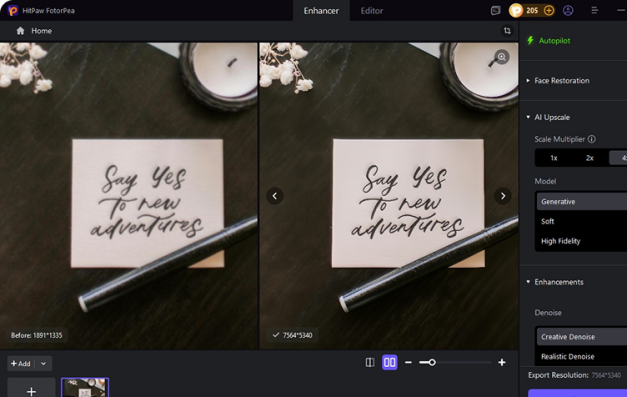
Lastly, press the “Export” button and wait for AI to finish processing. Then, preview and if it’s fine, hit the “Export” button. That’s all!
Tips for Better Text Enhancement Results
To achieve the best results when enhancing text in images, let’s explore the following tips:
- Use High-Quality Images: The enhancement depends on the original image’s quality. Avoid using heavily compressed or low-resolution images.
- Adjust Settings: Tools like HitPaw FotorPea allow manual adjustments. Adjust settings like sharpness, contrast, and noise reduction to enhance the text.
- Avoid Over-Processing: While users try to sharpen text as much as possible, over-enhancing can cause pixelation or add artifacts.
- Choose the Right Tool: HitPaw FotorPea offers a special text model, while Topaz Photo is better for overall image restoration. Use the tool that best matches the level of enhancement you need.
Conclusion
This post has provided various image text enhancer tools, both online and offline. Each one works well in different scenarios, so try whichever one fits your needs. However, HitPaw FotorPea is the best for enhancing blurry text in various images, from screenshots to handwritten notes. Give it a try today to make notes readable from photos!
Frequently Asked Questions
1. Can AI fix blurry text in images?
Yes, AI image text enhancer tools fix blurry text by sharpening, reducing noise, and enhancing contrast. So, the text becomes clear and easy to read in low-resolution images.
2. What is the best tool for enhancing text in images?
HitPaw FotorPea is the best tool to help enhance text in images. Its latest AI algorithms automatically detect, sharpen, and enhance text clarity, offering precise results without compromising image quality.
3. Will enhancing text reduce image quality?
Yes, sometimes enhancing text in severely distorted images reduces the quality, especially when overdone. However, using the right tool and a slight enhancement improves readability without introducing artifacts.
If you liked this, you’ll love what we discovered here at 2A Magazine.